
Publication Data, Open Access & Citation Counts
Below the reference, the side panel lays out what RefCopy knows about the article. Each item is there to read or to copy — click a field to put just that value on your clipboard.
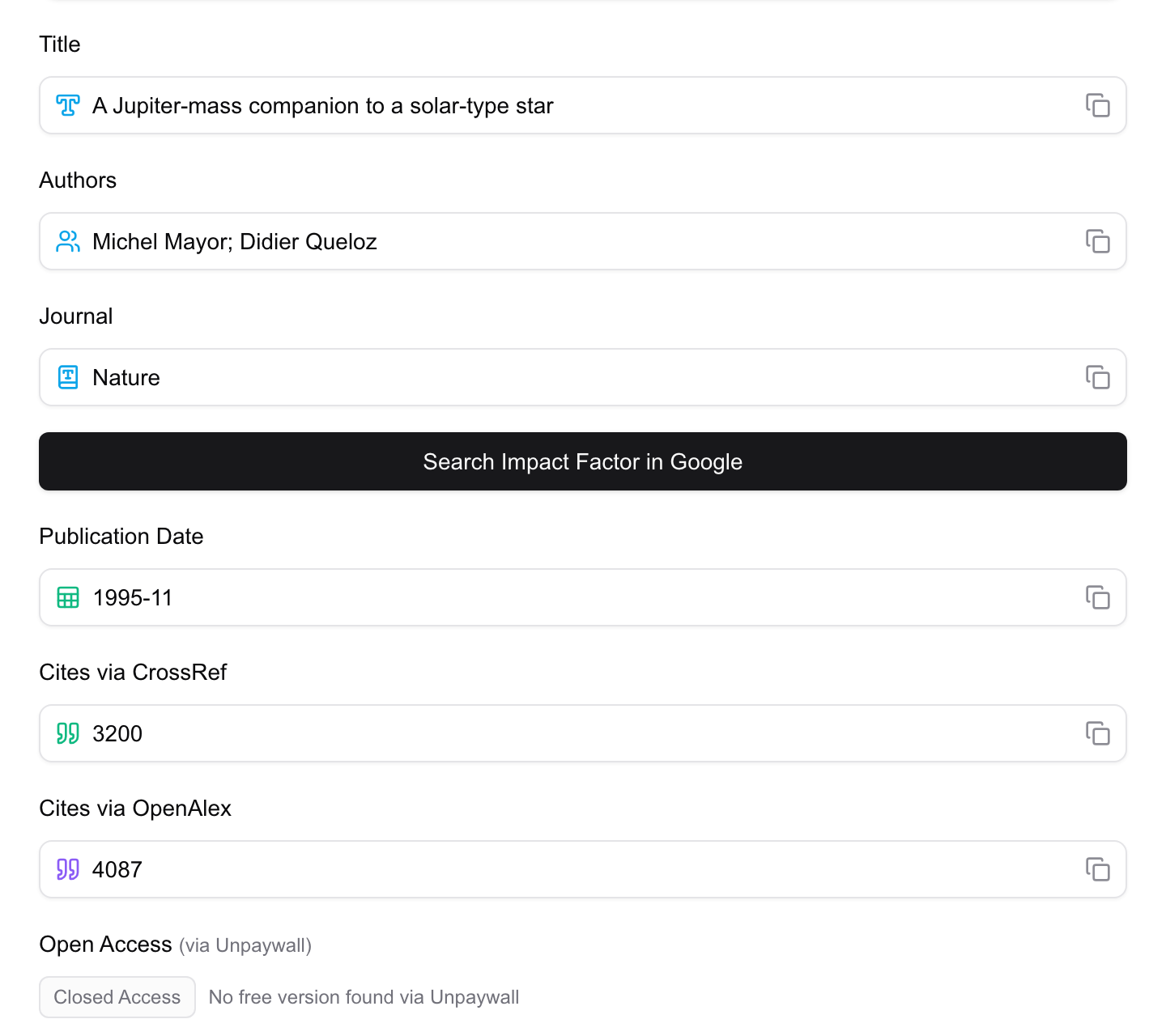
The details you can copy
These come straight from the article’s record, and each copies on its own:
- Title, Authors, Journal
- Publication date, Volume, Issue, Page
- Publisher, ISSN
Copy the authors for an email, the journal name for a cover letter, or the DOI for a message — without retyping or hunting through the page.
Citation counts
RefCopy shows how often the paper has been cited, from two sources: Crossref and OpenAlex. They count a little differently and refresh on their own schedules, so the two numbers won’t always agree — seeing both gives you a fuller picture than either on its own.
Open access and free PDFs
RefCopy checks Unpaywall to tell you whether a legal free version exists:
- When one is available, you’ll see its open-access type — gold, green, hybrid, or bronze — and a button to open the free PDF or the free version of the page.
- When no free copy is found, RefCopy says so plainly.
RefCopy doesn’t host anything itself; it points you to what Unpaywall has indexed from publishers and repositories.
License, funding, and subjects
Where the record includes them, RefCopy also surfaces:
- the article’s license (for example, CC-BY), so you know how it may be reused;
- the funders behind the work, with award numbers;
- the subjects and topics it has been classified under.
Authors and references
An ORCID link appears next to any author who has one, so you can jump to a researcher’s profile. The article’s own reference list is here too — expand it to see what the paper cites, each entry carrying a clickable DOI so you can follow the trail.
Handy shortcuts
A few buttons save a detour:
- Copy DOI link — the full
https://doi.org/…address, ready to share. - Search in Google Scholar — find the paper and the work that cites it.
- Impact factor — look up the journal’s impact factor.
RefCopy also adds a View in RefCopy button to Crossref search results, so when you track down a DOI there you can open it in the panel with one click.
Next: Tidy up your Google Scholar results, or adjust what appears in Settings.